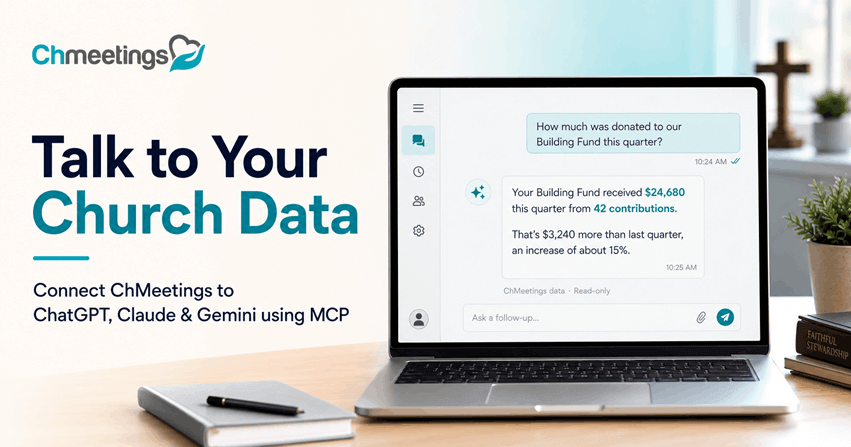

“How much was donated to our Building Fund this quarter?”
Instead of opening multiple reports and searching through your records, you can now ask your AI assistant in plain English.
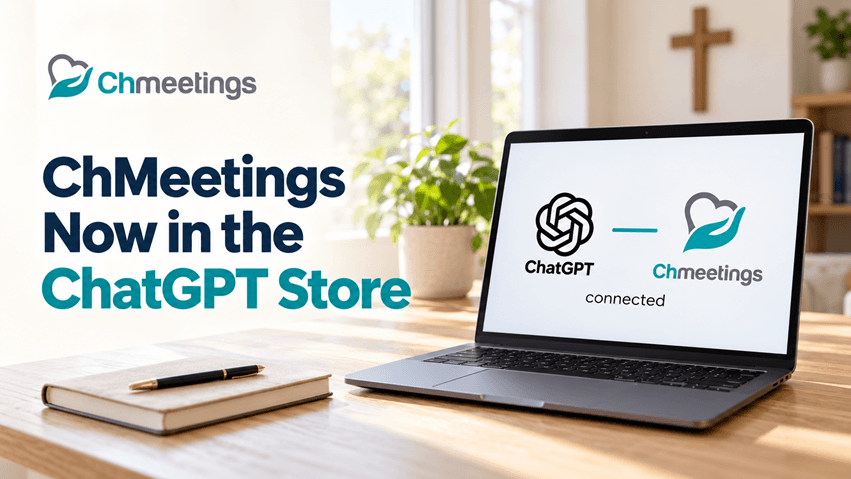
Today, we’re excited to introduce the ChMeetings MCP (Model Context Protocol) connector, allowing you to securely connect ChMeetings to AI assistants like Claude, ChatGPT, Gemini, and other MCP-compatible tools.
Your AI can read and summarize your ChMeetings data, helping you find information faster, understand giving trends more easily, and prepare for meetings without digging through multiple screens. Best of all, it’s completely read-only—your AI can never change, delete, or add data in your ChMeetings account.
What Is MCP?
Think of MCP (Model Context Protocol) as a secure bridge between ChMeetings and your AI assistant.
Once connected, your AI assistant can answer questions about the information stored in your ChMeetings account using natural language. Instead of navigating menus or searching manually, you simply ask a question and receive an answer based on your church’s own data.
What You Can Do Today
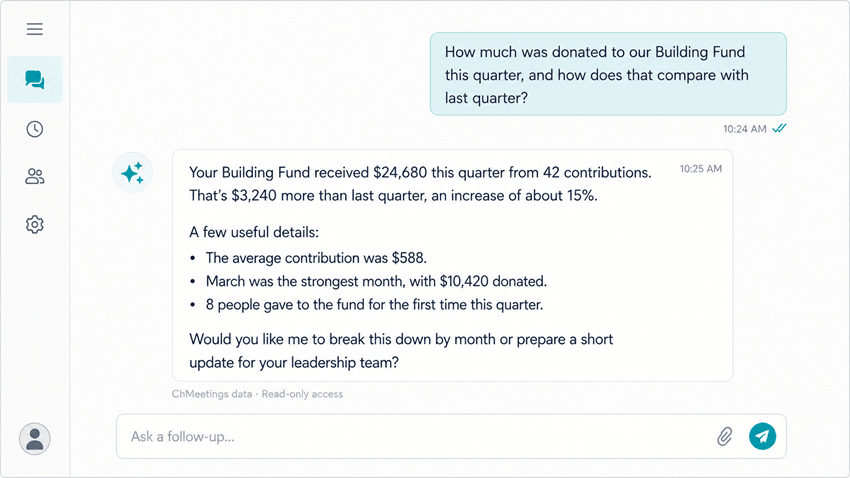
Better Understand Giving
Giving is one of the most valuable areas where AI can save church leaders time.
Instead of manually reviewing multiple reports, you can ask questions about contributions, giving campaigns, pledges, contribution batches, and envelope information in plain English.
For example:
- “How much was donated during the last three months?”
- “Show all contributions made by John Smith this year.”
- “Summarize giving between January 1 and March 31.”
- “List all giving campaigns currently in ChMeetings.”
- “Show the pledges for our Building Fund campaign.”
- “Show members who don’t have an envelope number.”
These kinds of questions are especially useful when preparing finance committee meetings, board reports, stewardship updates, or simply answering day-to-day questions more quickly.
Because the AI can summarize the information it retrieves, it becomes much easier to understand your giving data without manually piecing multiple reports together.
Find People and Families Faster
Need to locate a member or review family information?
Instead of searching through your database manually, simply ask.
Examples include:
- “Find Sarah Johnson.”
- “Show the details for Michael Brown.”
- “Search for members with the mobile number 555…”
- “Show this family’s information.”
- “List all families whose last name is Smith.”
- “What notes are recorded for this member?”
- “Show the custom fields configured for our member profiles.”
Whether you’re preparing for a pastoral visit, answering an office phone call, or looking up information before a meeting, AI helps you retrieve information much more naturally.
Explore Your Groups
Groups are often at the center of church life.
With the ChMeetings MCP connector, your AI assistant can help you quickly explore your group structure and membership.
For example:
- “List all groups.”
- “Show everyone in the Worship Team.”
- “Who belongs to the Young Adults group?”
- “Summarize the groups currently in our church.”
Instead of clicking through multiple screens, you can simply ask your question and receive an organized response.
Draft Communications Faster
While the AI cannot send messages or communicate with members, it can help you prepare communications based on the information you’ve retrieved.
For example, after asking:
“Show everyone in the Welcome Team.”
You might then ask:
- “Draft a friendly email reminding this team about Sunday’s meeting.”
- “Write a short newsletter paragraph thanking these volunteers.”
- “Create a summary of this giving campaign that I can include in our monthly newsletter.”
You can review the draft, make any changes you like, and then copy it into ChMeetings or your preferred communication tool.
Your Data Stays Safe
Security and trust are essential when working with church information.
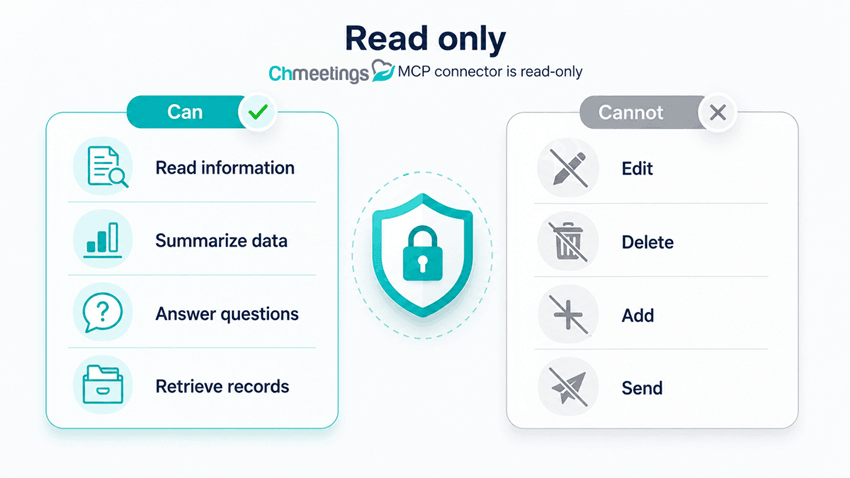
The ChMeetings MCP connector is read-only.
That means your AI assistant can:
- Read information you’ve authorized it to access.
- Summarize your data.
- Answer questions.
It cannot:
- Edit member records.
- Delete data.
- Add new information.
- Record contributions.
- Send messages.
- Perform actions inside ChMeetings.
This design helps ensure your church records always remain under your control.
A Note About AI Privacy
One important consideration isn’t specific to ChMeetings—it’s how your chosen AI provider handles conversations.
By default, some AI providers, including Anthropic (Claude) and OpenAI (ChatGPT), may use conversations to improve or train their models. If your conversations include member information or giving data, you may prefer to disable this.
We recommend turning off conversation training before connecting your church data.
- Claude: Go to Settings → Privacy and turn off Help improve Claude.
- ChatGPT: Go to Settings → Data Controls and disable Improve the model for everyone (or the equivalent conversation training option available in your account).
This helps keep your church’s information as private as possible while using AI.
Getting Started
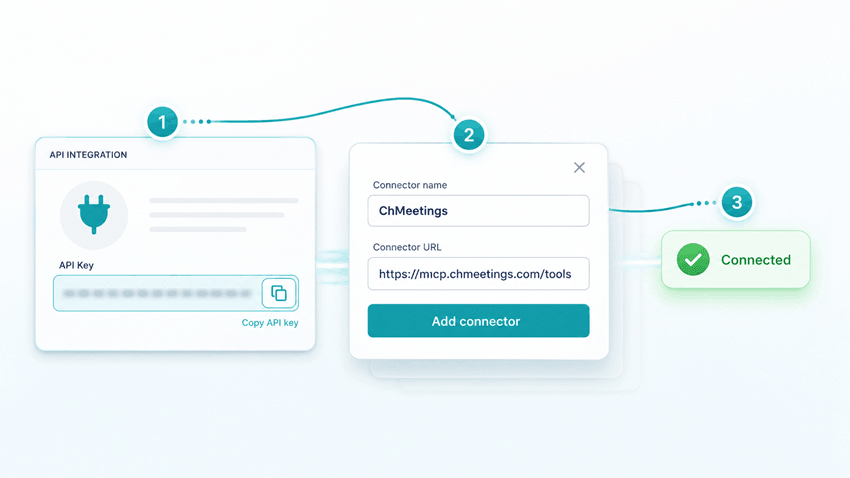
Connecting ChMeetings to your favorite AI assistant only takes a few minutes.
The ChMeetings MCP connector works with any MCP-compatible AI assistant. When adding an external MCP connector in your AI tool, simply use the following connector URL:
https://mcp.chmeetings.com/tools
Your AI assistant will prompt you to authenticate using your ChMeetings API key before it can securely access your data.
The exact setup process varies depending on which AI assistant you’re using, so we recommend following its official documentation for adding external MCP connectors:
- ChatGPT: Apps in ChatGPT
- Claude: Get started with custom connectors using remote MCP (Customize → Connectors)
Once connected, you can immediately begin asking questions about your ChMeetings data in plain English.
Frequently Asked Questions
Which AI assistants work with ChMeetings?
Any AI assistant that supports the Model Context Protocol (MCP), including Claude, ChatGPT, Gemini, and other compatible tools.
Can the AI change or delete my data?
No. The ChMeetings MCP connector is completely read-only. It can retrieve and summarize information but cannot modify, create, or delete anything in your ChMeetings account.
Can the AI send emails or text messages?
No. The AI can help you draft emails, newsletters, summaries, or other text based on the information you’ve retrieved, but it cannot send messages or communicate with members on your behalf.
Do I need technical knowledge to use it?
Not at all. Once the connector is connected, you simply ask questions in plain English, just as you would chat with any AI assistant.
Church administration shouldn’t require hunting through reports or clicking through countless screens.
With the ChMeetings MCP connector, your church’s people, families, groups, and giving information become easier to explore using simple, natural conversations with AI.
It’s a faster way to find answers, prepare for meetings, and better understand your church’s data while keeping your records secure and completely under your control.