
We Love
Developers
Because We
Are Developers
Build custom integrations, automate ministry workflows, and create tailored solutions using secure, well-documented APIs that give you reliable access to the church data your team needs.
Rest API
MCP Server
Webhooks
Secure API keys
// Sync our members — no guesswork

const { data } = await chmeetings
  .people.list({ page: 1, pageSize: 100 })

// Map them to your CRM shape

const members = data.map((p) => ({
    id: p.id,
    name: p.fullName,
    email: p.email,
}))
Create Integrations That Churches Love
Whether you're building tools for your specific congregation or a product for the entire ChMeetings ecosystem, we provide the infrastructure.
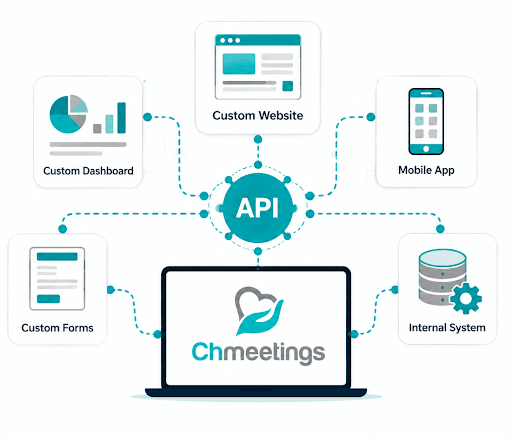
Custom Solutions
From tailored reporting to directories and automations, our API gives you safe, predictable access to your church data. Log in and get your account API key from settings.
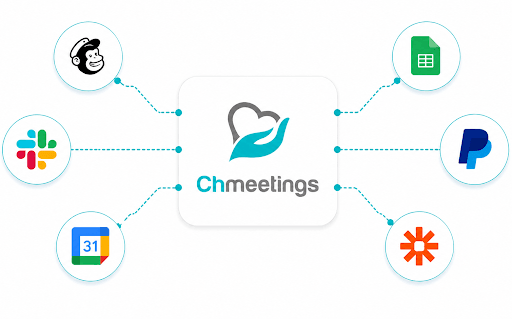
Third-Party Integrations
Build on the ChMeetings API to create third-party integrations. Go live, then send your listing details to be showcased and reach thousands of churches worldwide.
How It Works?
Our simplified integration pipeline gets you from "Hello World" to Production in minutes.
Add the MCP endpoint
Add this resource URL in VS Code, Cursor, or any MCP-compatible IDE. It serves ChMeetings’ live API docs — so your AI writes against the real spec instead of guessing.
Point your AI at the right docs
Each area of the platform is its own focused resource. Name the one you need and your assistant stays grounded in the correct documentation.
Describe it, then build
Ask for the feature in the stack your team already runs and let your AI scaffold it. Full install steps and prompt recipes live in the MCP setup guide.
Get your API key
From your ChMeetings Settings → Integrations → API Integration. Click on Get API to get your key.
Make your first call
Use your key to fetch data. Test your connections using our interactive API Playground or CLI tools.
apikey: YOUR_API_KEY
Build and share
Submit your app to be featured on our Integrations page and grow your impact.